Submitting In-class Projects and
Programming Assignments


There will be a number of in-class programming exercises and out-of-class homework and programming assignments. All are to be submitted to the instructor electronically. Some will be submitted via e-mail others will be submitted by copying your files to a network disk drive. The instructor will tell you how to submit each item.

Make sure you are submitting items in the way instructed. Assignments will not be accepted if submitted incorrectly. Printed copies will NOT be accepted under any circumstances. If you try to submit an item after the posted deadline and have not talked to the instructor about it being late then it will not be accepted.

Submitting assignments via e-mail

When told to "Submit your work via e-mail" do the following:

  1. Using your preferred e-mail application, create a new message.
  2. Address this to rcoleman@cs.uah.edu
  3. Include in the text of the message your name and what you are submitting.
  4. Attach your files to the e-mail and send it. The instructor will reply back with a grade on the work as soon as possible.


Submitting assignments via network disk drive

When told to "Copy your work to the K drive" do the following:

  1. Make sure your files have a unique name. This usually means your name is included in the name of the file, or you have your files in a folder that includes your name in the name of the folder. Examples: a file may be named AStudentProg1.java or a folder may be named AStudentProject1 where AStudent is your first initial and last name.

    DO NOT ATTEMPT TO COPY A FOLDER TO THE K DRIVE IF THAT FOLDER CONTAINS OTHER FOLDERS WITH YOUR FILES IN IT. THE INNER FOLDER WILL BE COPIED BUT ITS CONTENTS WILL NOT.

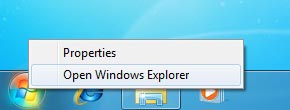
  2. Open a Windows Explorer window:
    • Right click the Windows logo in the lower left corner of the screen.
    • Select Open Windows Explorer


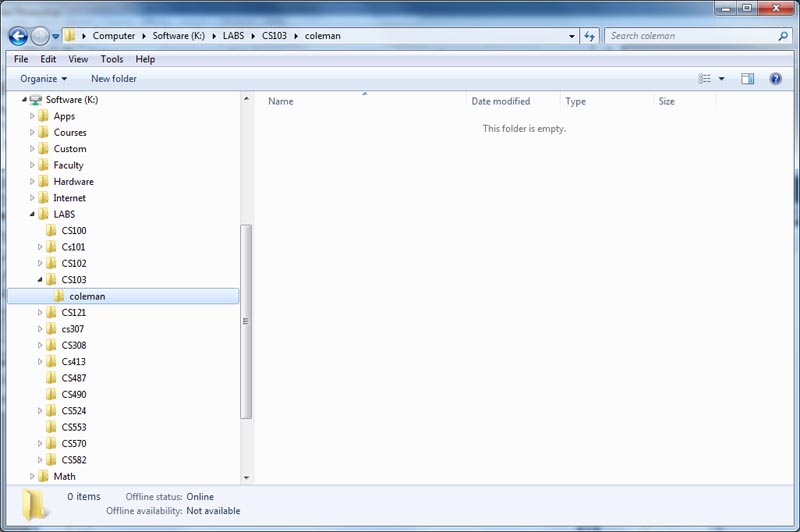
  3. Locate the K drive in the hierarchy list on the left. (See image below)
  4. On the K drive select Labs\CS103\coleman
  5. Copy your files/folder to this location.

    NOTE: You can copy files and folders TO this directory, but you cannot copy anything FROM this directory, nor can you overwrite anything that you have already copied to this directory. If you have a problem see the instructor.